Here is a step-by-step tutorial of the process for ringing up a sale using debit. If it’s a cash sale, write out a receipt with much the same information but don’t ring it up with the Square app.
*Note: be sure to take a photo first of the item being purchased. It will help a lot if there is any issue as to what got sold.
A note about the old iPad we’re using. The screen has some dead spots so tapping info using it will be iffy so I’ve left my keyboard with it.
Plus the on/off button doesn’t work but the iPad is set to turn off when you close the flap on the screen.
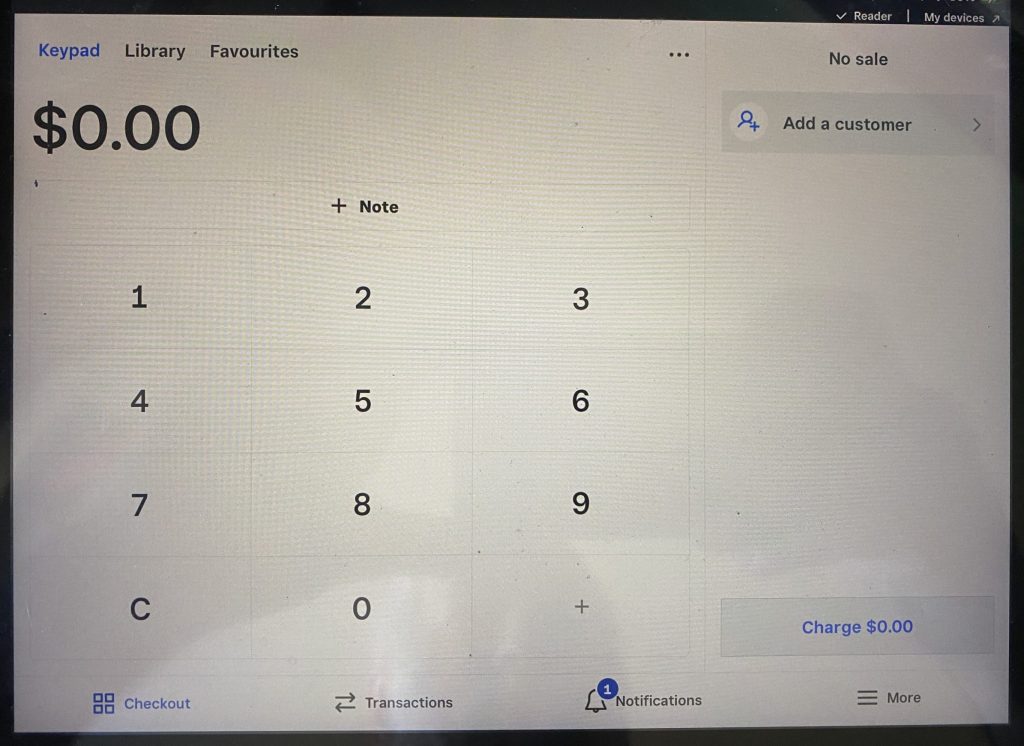
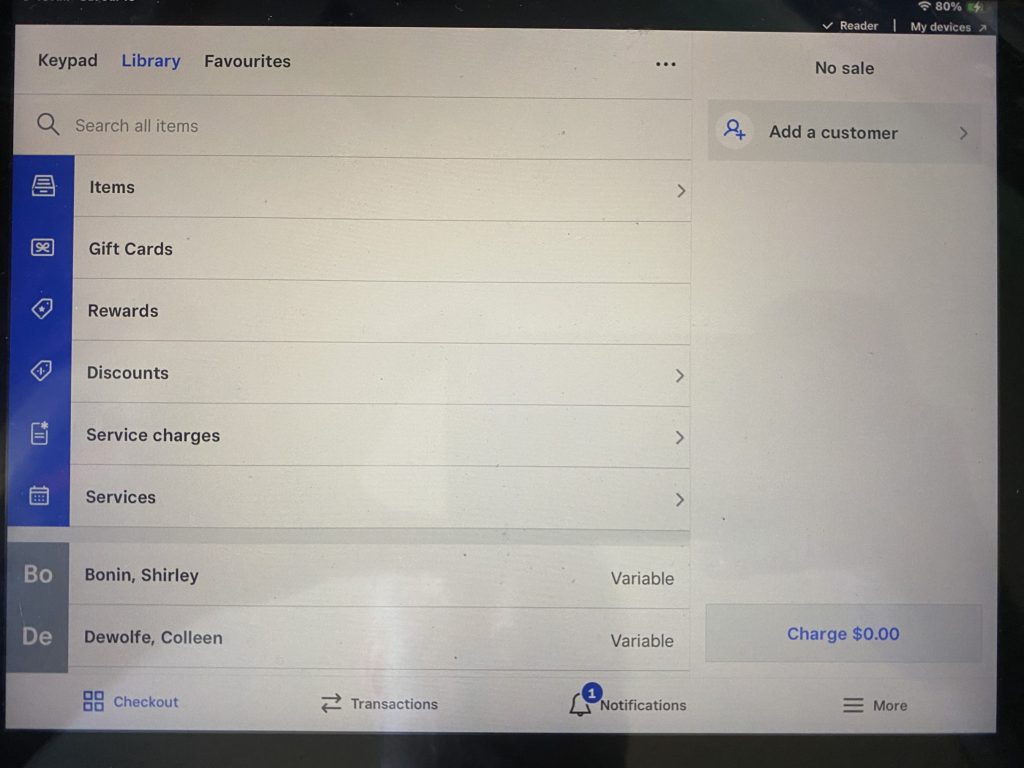
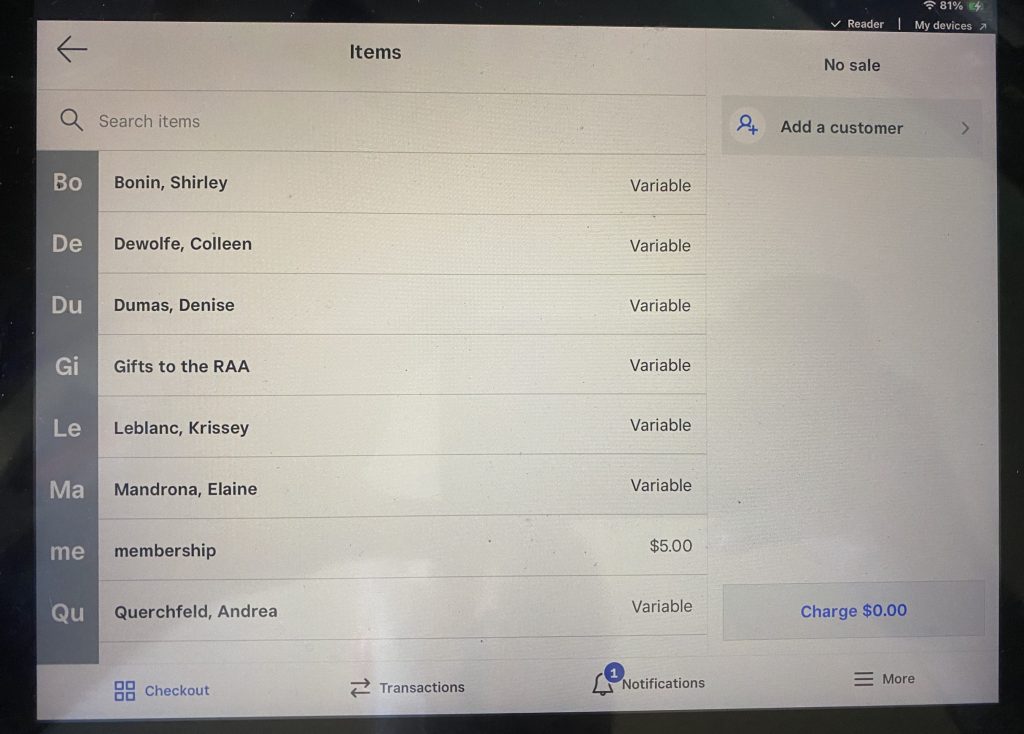
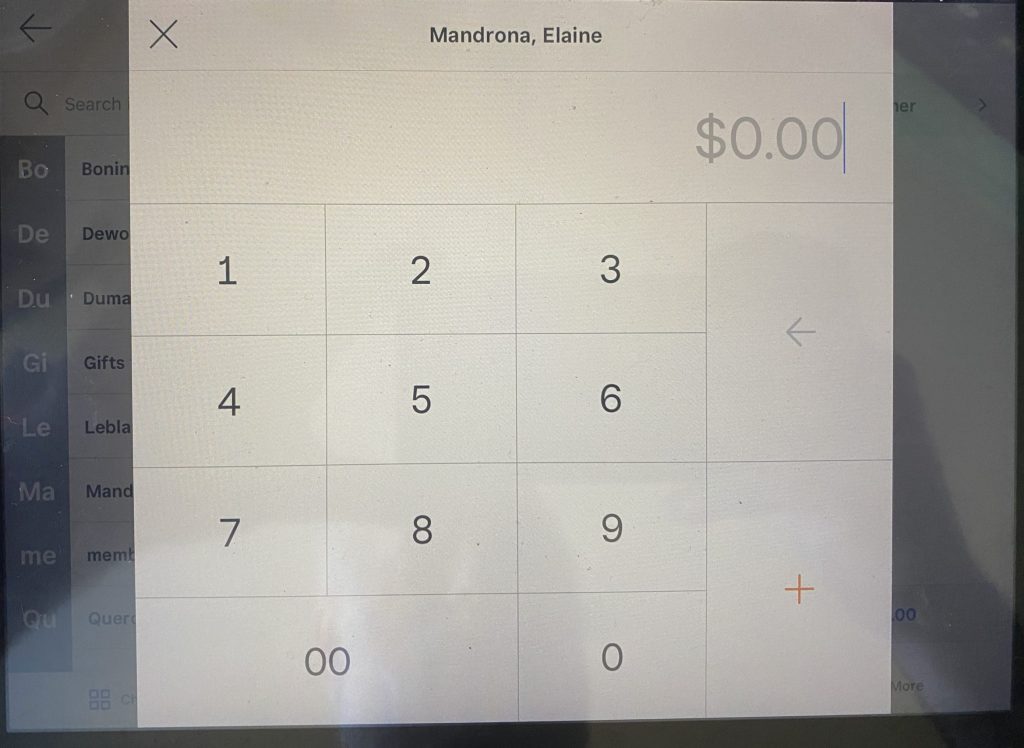
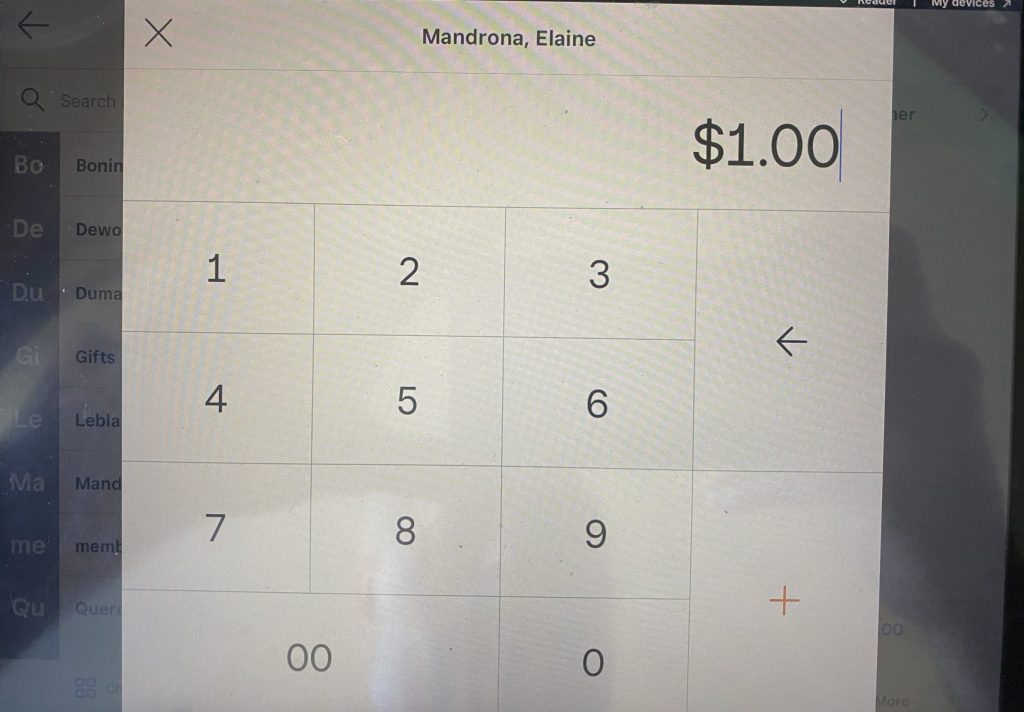
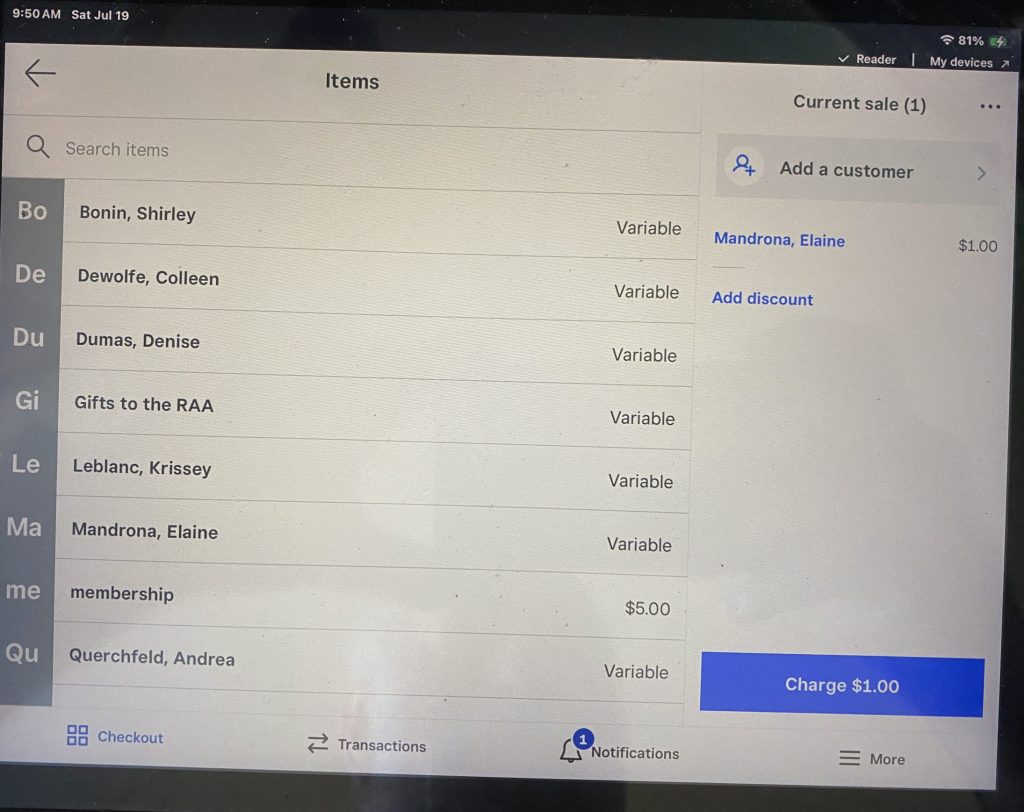
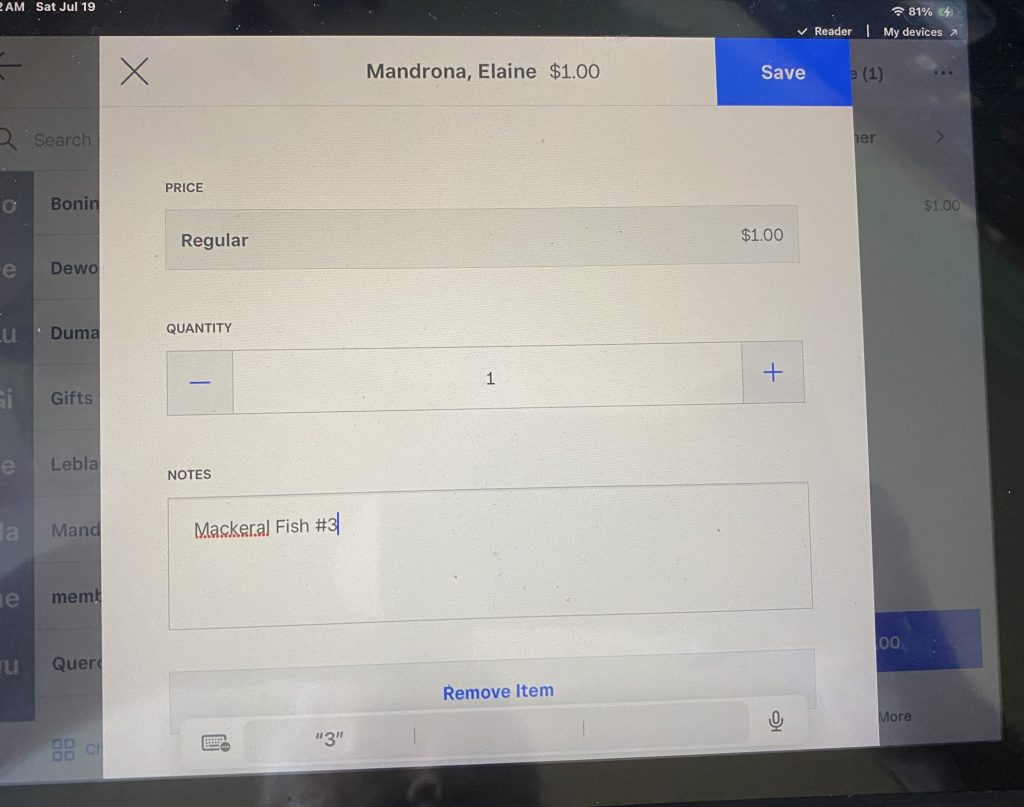
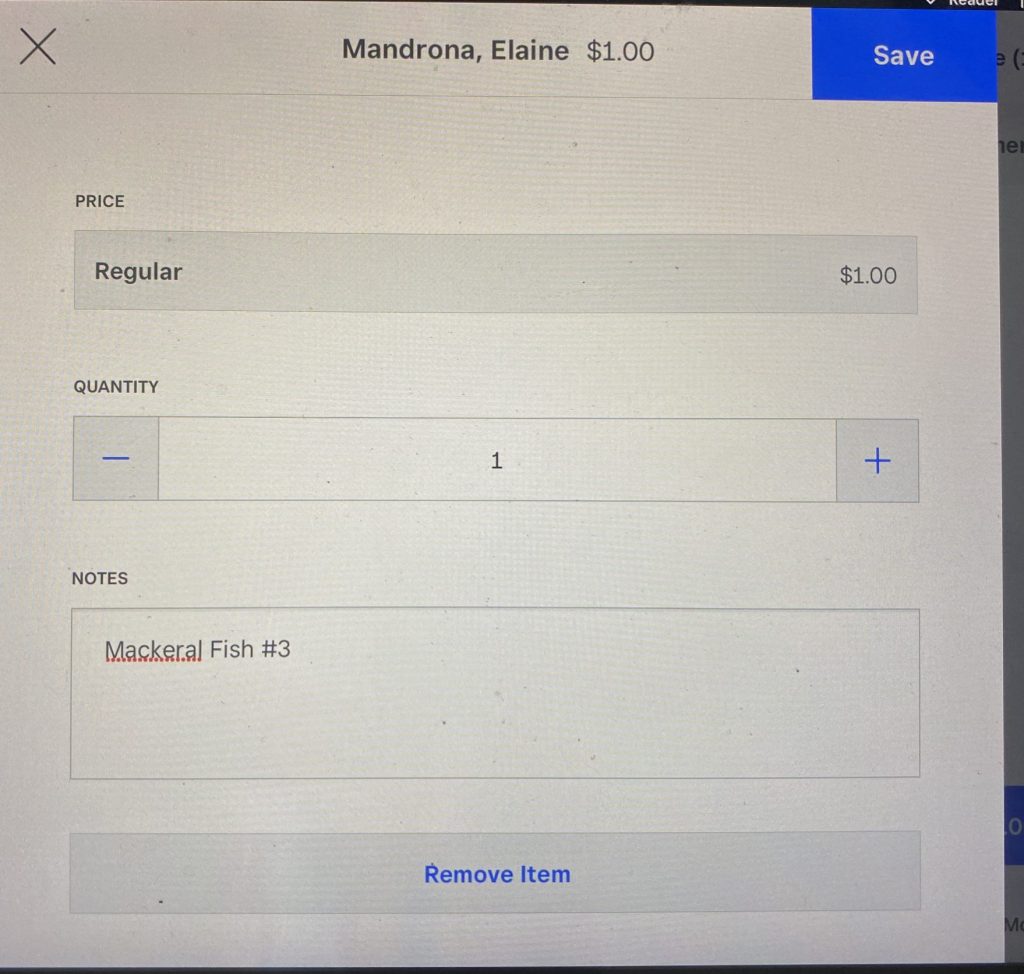
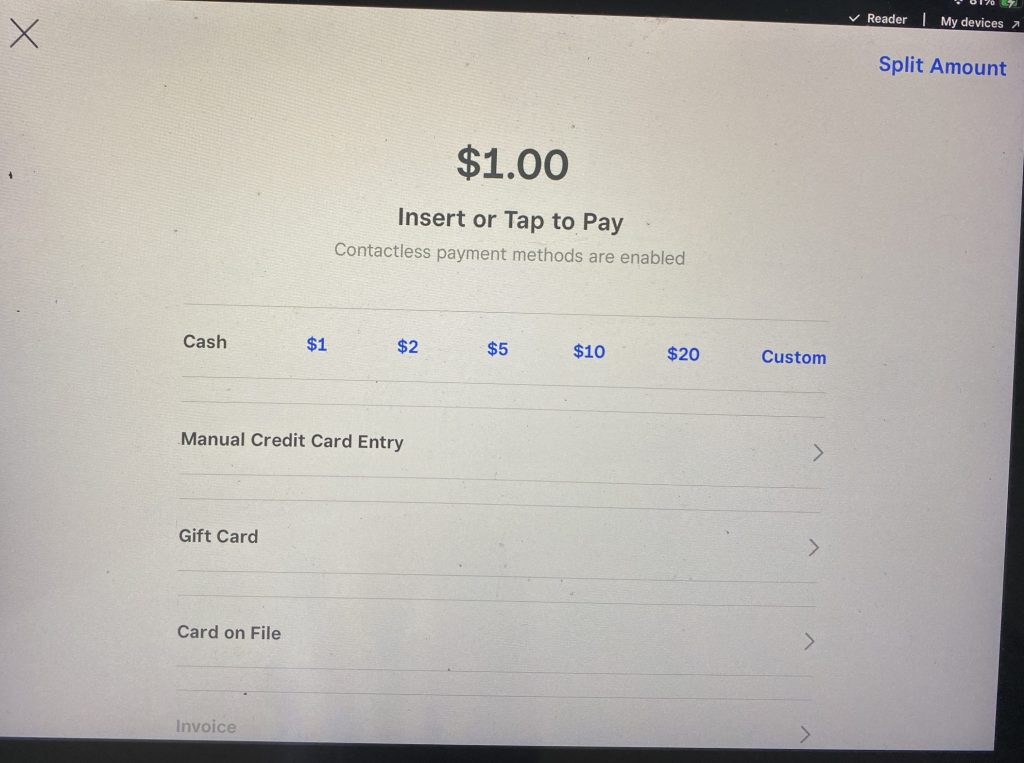
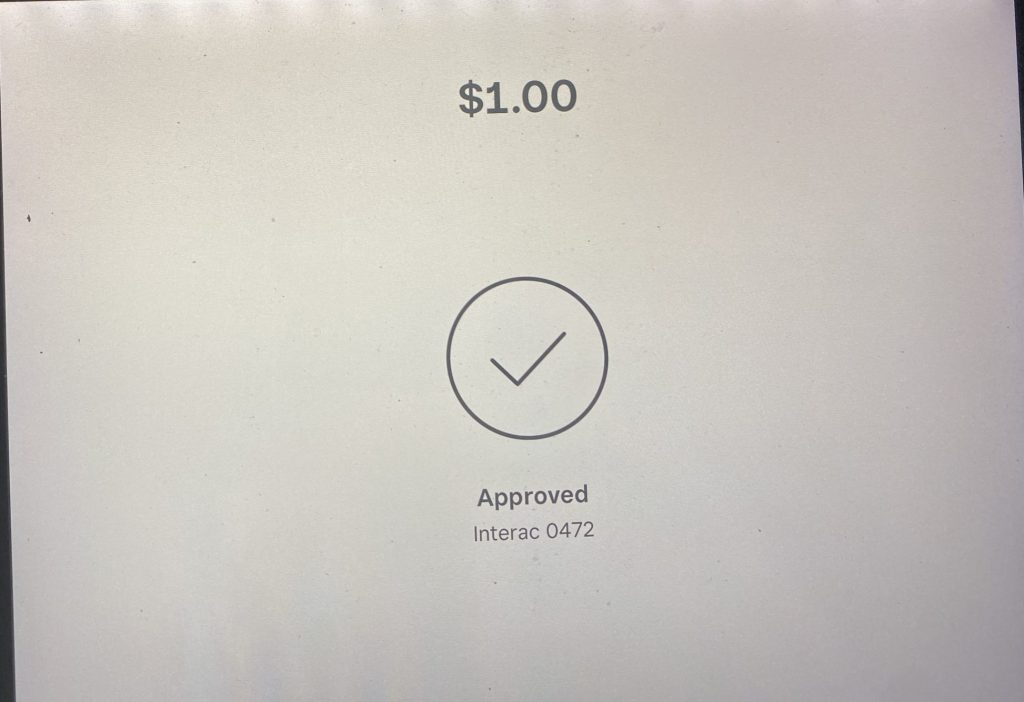
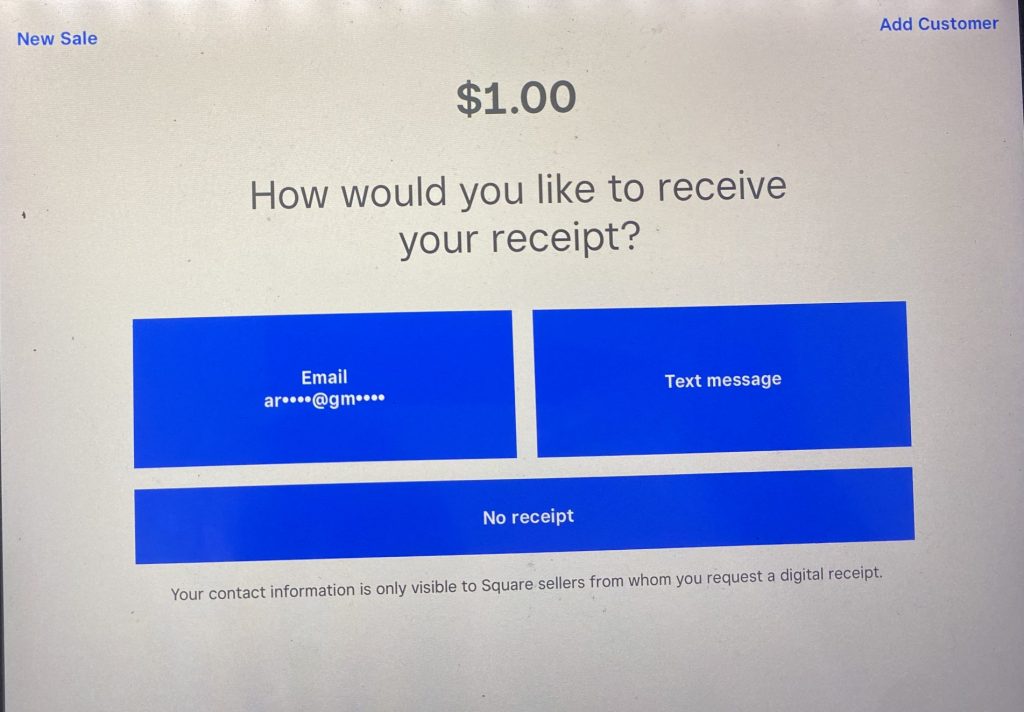
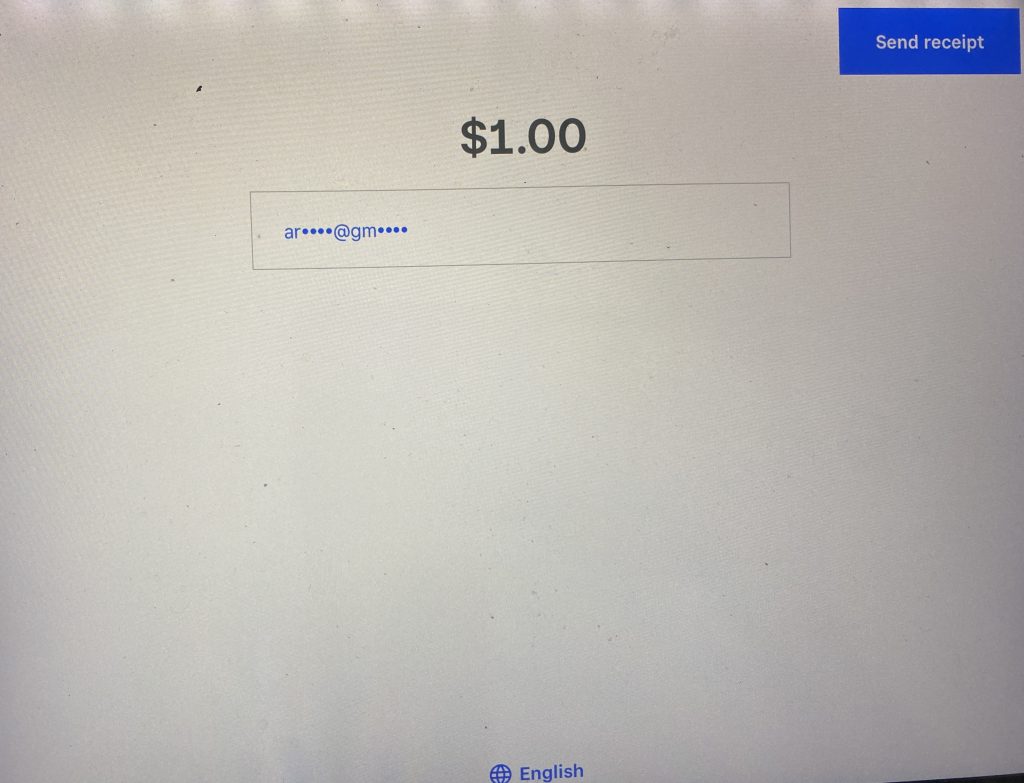
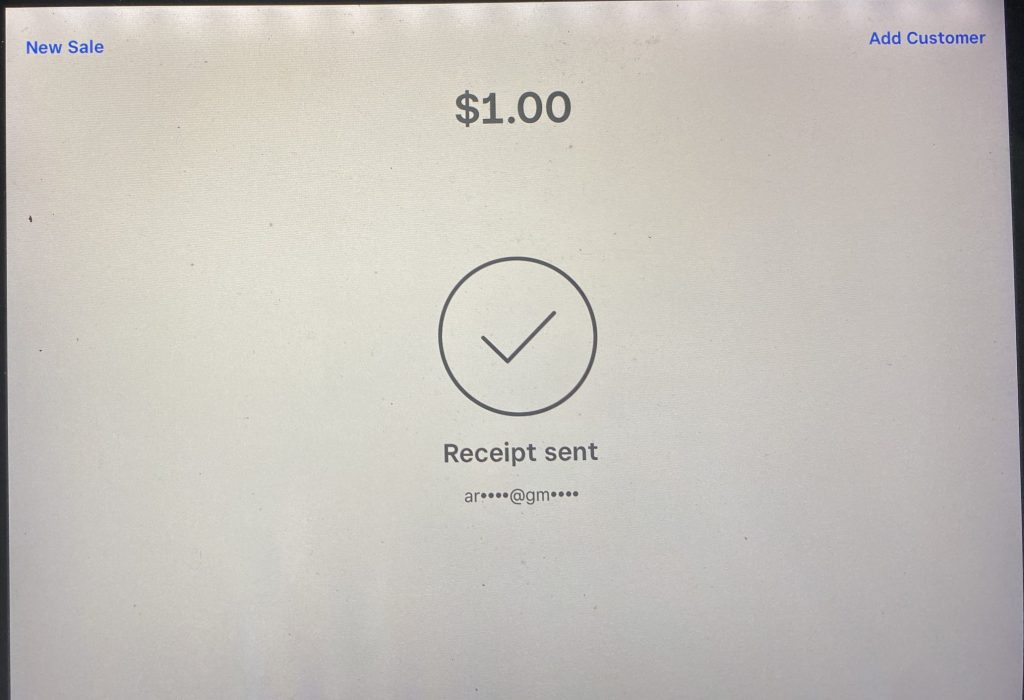
1. Start here: when you open the app you should be here. In the top left corner tap Library to get to your items. 2. Each artist is an Item. Tap Items to go to the list of artists.3. Here are all our artists. You’ll also find Gifts to RAA, which is donations. For some reason Square won’t let you use the word donations in the items list. You’ll also find membership here, which is $5. If someone wants to join and donate, you’ll have to enter each separately. But For this tutorial I’ll tap Elaine Mandrona.4. Now, tap in the amount of the item. 5. The item cost $1.00.6. Notes: it is critical you add a note to specify what item you are selling. Tap the item in the right column. It says Mandrona, Elaine…$1.00.7. It will take you here. In the Notes box type in what the item or inventory number is, if there is one. Be sure it’s described well enough to know what was sold. The photo you took will help clarify this, if it’s necessary. This is Mackerel Fish #3 as per her tag.8. Tap Save in the top right corner.9. Have the customer tap or insert their card into the reader. Listen for the peep.10. Transaction worked.11. Ask the customer which they prefer, Email receipt, Text message or no receipt. I’m the last customer so my email is there12. Insert the email address and tap Send Receipt in the top right corner.13. Done. Tap New Sale in top left corner to move on to the next customer.